A staging environment is a replica of a live WordPress website that exists specifically for testing changes before they affect the production site that visitors see. The concept originates from professional software development, where deploying untested code directly to production systems is considered reckless — any code change, no matter how minor, has the potential to break functionality, corrupt data, or degrade performance. WordPress sites, despite their user-friendly interface, are complex software applications that combine PHP code, MySQL databases, JavaScript, CSS, server configurations, and dozens of plugins and themes. A single incompatible plugin update, a misconfigured theme setting, or an untested code change can take a site offline, break e-commerce functionality, or corrupt content.
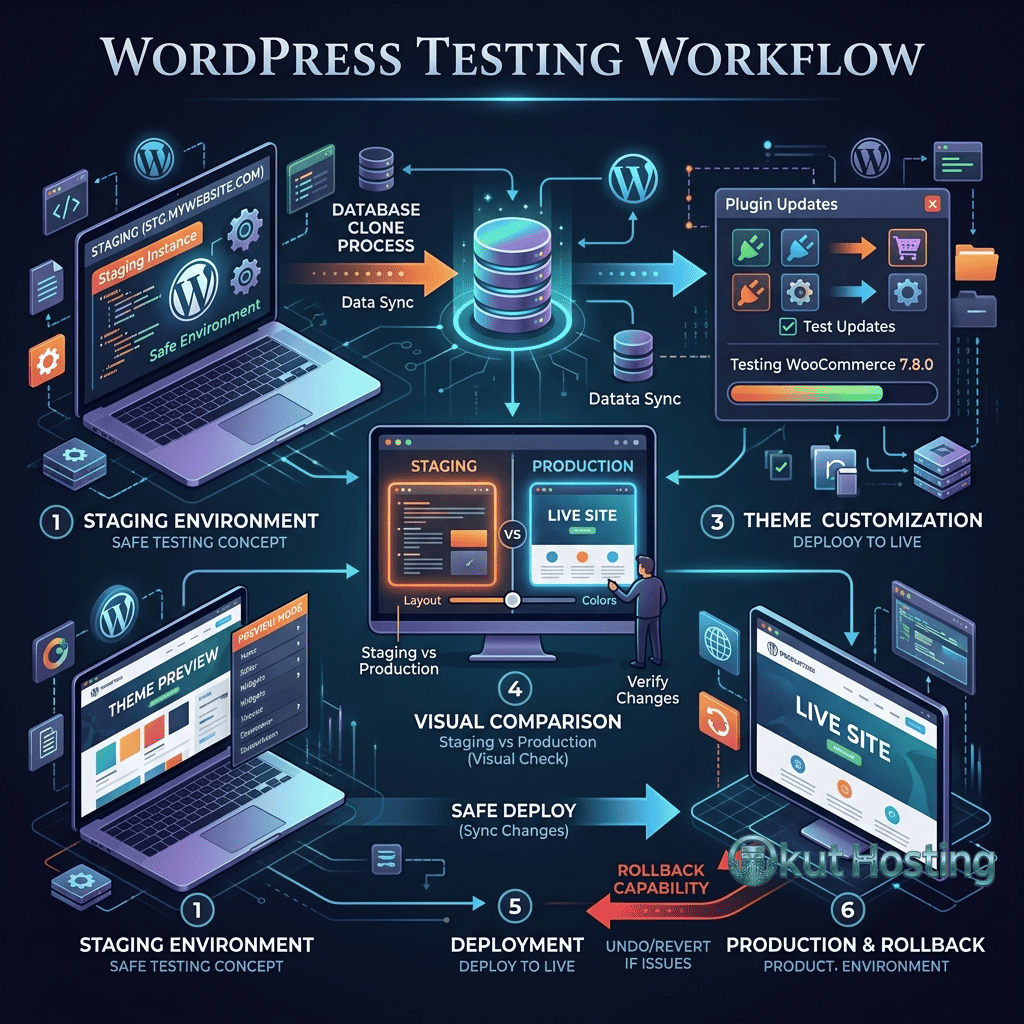
Staging environments provide a safety net that separates the experimentation and testing process from the live site that generates traffic, revenue, and business value. Changes are made in staging, tested thoroughly, and deployed to production only after verification confirms they work correctly. This workflow reduces the risk of deploying changes that break live site functionality, protects e-commerce revenue from checkout disruptions, and preserves the consistent visitor experience that builds trust and supports SEO performance.
Why Staging Environments Matter
The WordPress ecosystem’s update cycle makes staging environments particularly important. WordPress core releases major updates several times per year, plugins push updates frequently (some weekly or monthly), and themes receive updates for compatibility and feature additions. Each update has the potential to introduce incompatibilities — a plugin update might conflict with another plugin, a theme update might break custom CSS, or a WordPress core update might deprecate a function that a plugin depends on.
Without staging, the only way to discover these incompatibilities is to apply updates to the live site and observe the results — an approach that puts real visitors at risk of encountering broken functionality. With staging, updates can be applied in isolation, tested against the site’s specific configuration, and deployed to production only after confirming compatibility. This testing workflow transforms updates from high-risk operations into routine maintenance procedures.
E-commerce sites have an even stronger case for staging environments. WooCommerce stores process financial transactions, manage inventory, and handle customer data — operations where errors directly translate to lost revenue, double-charged orders, or data integrity issues. Testing WooCommerce updates, payment gateway changes, shipping configuration modifications, and checkout workflow adjustments in staging before production deployment prevents the revenue-impacting errors that occur when untested changes affect the live purchase flow.
For businesses that depend on their WordPress sites for lead generation, content marketing, or direct sales, the cost of downtime or broken functionality far exceeds the cost of implementing staging environments. The question is not whether to use staging, but how to implement it effectively for the specific WordPress configuration and hosting environment.
Host-Provided Staging
Many managed WordPress hosting providers include staging environments as a built-in platform feature. Providers including WP Engine, Kinsta, SiteGround, Flywheel, Pressable, Cloudways, Nexcess, and DreamPress offer one-click staging creation that generates a complete copy of the production site — files, database, and configuration — on separate infrastructure accessible through a temporary URL.
Host-provided staging offers the lowest friction implementation because the hosting provider handles the infrastructure provisioning, file copying, database duplication, and URL configuration. Creating a staging site is typically a single-click or single-command operation through the hosting control panel, and deploying changes from staging to production is handled through the hosting provider’s deployment tools.
The deployment process from staging to production varies by hosting provider. Some providers deploy only code changes (themes, plugins, and configuration files) while leaving the production database untouched. Others provide selective deployment options where users can choose to deploy code, database, or both. Understanding the specific deployment behavior of the hosting provider’s staging tool is important because deploying the staging database to production could overwrite production content changes made while the staging site was being tested.
Limitations of host-provided staging include restrictions on the number of staging environments available (typically one per plan), potential differences between staging and production server configurations, and provider-specific constraints on staging functionality. Some providers restrict access to certain features in staging environments or impose bandwidth and traffic limits on staging sites.
Staging Security Considerations
Staging environments require appropriate security measures because they contain copies of production data — including potentially sensitive customer information, configuration credentials, and business data. Staging sites should be protected from public access through password protection, IP restriction, or authentication requirements that prevent unauthorized visitors and search engine crawlers from accessing the staging content.
Search engine indexing prevention is particularly important for staging environments. If search engines discover and index staging URLs, duplicate content issues can affect the production site’s SEO performance. Adding noindex meta tags, robots.txt restrictions, and password protection ensures that staging content does not appear in search engine results. Most host-provided staging environments implement these protections automatically, but plugin-based and manual staging setups require explicit configuration.
Staging environments that contain customer data — WooCommerce orders, user accounts, membership information — should be treated with the same data protection standards as production environments. Organizations subject to GDPR, CCPA, or other data protection regulations should consider whether staging environments containing production data copies meet their compliance requirements, and whether data anonymization or masking should be applied to staging databases.
Plugin-Based Staging
WordPress staging plugins create staging environments within the existing hosting account, generating copies of the WordPress installation in subdirectories or subdomains. Plugins like WP Staging, Starter Templates, and others provide staging functionality on hosting environments that do not include built-in staging capabilities.
Plugin-based staging works by copying the WordPress files and database into a separate location on the same hosting account. The staging site runs alongside the production site, sharing the same server resources. This approach makes staging accessible on any hosting plan — including basic shared hosting — without requiring the hosting provider to offer staging as a platform feature.
The trade-offs of plugin-based staging include resource sharing between the staging and production sites. Creating and maintaining a staging copy consumes disk space and may affect performance during resource-intensive operations like initial staging site creation or database synchronization. The staging site shares the same PHP version, server configuration, and resource limits as the production site, which means staging accurately reflects production behavior but also means that resource-intensive testing may affect production performance.
Manual Staging Setup
Manual staging involves creating a separate WordPress installation that replicates the production site’s configuration, then synchronizing files and database content between the two installations. This approach provides the most control over the staging environment but requires more technical knowledge to implement and maintain.
The manual staging process begins with creating a new WordPress installation on a subdomain (e.g., staging.example.com) or in a subdirectory. The production site’s files are copied to the staging location, and the production database is exported and imported into a new database for the staging installation. The staging site’s wp-config.php is configured with the new database credentials, and a search-replace operation updates URLs throughout the database to reflect the staging domain or path.
Ongoing synchronization between production and staging requires periodic refreshes of the staging database with current production data. This synchronization ensures that testing occurs against current content, user data, and configuration rather than stale data from the initial staging creation. Manual synchronization workflows typically involve re-exporting the production database, importing it into the staging database, and running the URL search-replace operation again.
Local Development Environments
Local development environments run WordPress on the developer’s own computer rather than on a remote server. Tools like Local (by Flywheel), MAMP, XAMPP, Lando, and Docker-based WordPress configurations enable developers to run complete WordPress installations locally with PHP, MySQL, and a web server operating on the development machine.
Local development provides the fastest iteration cycle because changes are reflected immediately without uploading files to a remote server. Developers can modify code, test changes, and debug issues with the full power of local development tools — code editors, debugging tools, browser developer tools, and performance profilers — all operating on the same machine. For theme and plugin development, local environments provide the optimal development experience.
The limitation of local development for staging purposes is that the local environment may not perfectly replicate the production hosting environment. PHP version differences, server configuration variations, installed PHP extensions, database versions, and operating system differences between the local environment and the production server can cause behavior differences. Changes that work perfectly locally may behave differently on the production server, particularly for operations that depend on specific server configurations or PHP extensions.
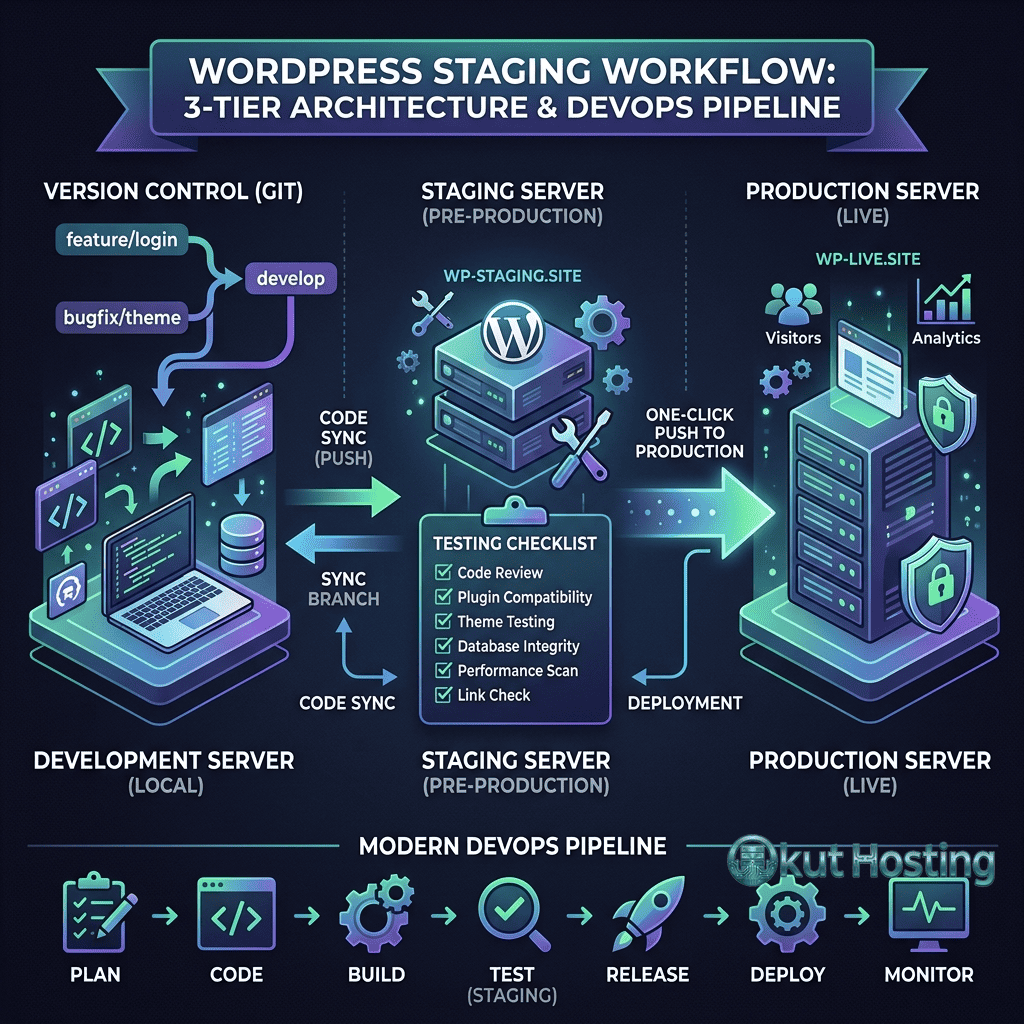
A comprehensive workflow combines local development with remote staging: developers build and test changes locally for rapid iteration, then deploy to a remote staging environment that mirrors the production infrastructure for final testing before production deployment. This combined approach leverages the speed of local development and the accuracy of remote staging.
Testing Best Practices
Effective staging testing follows systematic procedures that verify functionality across the site rather than checking only the specific changes being deployed. A comprehensive testing checklist covers visual appearance, functionality, performance, and compatibility.
Visual testing verifies that pages display correctly across different screen sizes and browsers. Responsive design testing ensures that mobile, tablet, and desktop layouts render as expected. Cross-browser testing covers major browsers including Chrome, Firefox, Safari, and Edge, identifying rendering differences that might affect visitor experience.
Functional testing exercises the site’s interactive features: contact forms, search functionality, navigation menus, filtering and sorting, user login and registration, comment submission, and any custom functionality implemented through plugins or custom code. E-commerce testing covers the complete purchase flow — product browsing, cart management, coupon application, checkout, and payment processing — to verify that revenue-generating functionality works correctly.
Performance testing compares staging site performance against production baselines. Page load times, server response times, and Core Web Vitals metrics should be measured after changes to ensure that new code, plugins, or configuration changes have not degraded performance. Performance regression — slower page loads after an update — is a common but often undetected issue that staging testing can identify before it affects live visitors.
Database Synchronization Challenges
One of the most complex aspects of staging environment management is database synchronization between staging and production. The WordPress database contains both content (posts, pages, comments, user data) and configuration (plugin settings, theme options, widget arrangements). When changes are made to configuration in staging while content changes are made in production, merging the two becomes problematic.
Most staging deployments handle this by deploying code changes (files) to production while leaving the production database intact. Configuration changes made through the WordPress admin in staging — plugin settings, theme options, widget arrangements — are then manually replicated in production after code deployment. This approach preserves production content but requires additional manual work for configuration changes.
Advanced staging workflows use database migration tools that can selectively synchronize specific database tables or settings between environments. Tools like WP Migrate DB Pro enable selective table synchronization, find-and-replace operations during transfer, and media file synchronization between staging and production. These tools reduce the manual effort of maintaining database consistency across environments but add complexity to the staging workflow.
Version Control Integration
Integrating staging workflows with Git version control adds structure, auditability, and collaboration capabilities to the change management process. Code changes are committed to Git branches, reviewed through pull requests, and deployed to staging for testing before merging to the production branch and deploying to the live site.
Git-based staging workflows enable multiple developers to work on different features simultaneously without conflicts. Each feature is developed on its own Git branch with its own staging environment (when Multidev-style staging is available), tested independently, and merged when ready. This branching approach prevents the bottleneck that occurs when a single staging environment must serialize all testing activities.
Platforms like Pantheon, WP Engine, and Kinsta support Git-based deployment workflows that integrate version control directly into the staging and deployment process. These integrations enable continuous deployment pipelines where code pushed to specific Git branches is automatically deployed to corresponding environments — pushing to a development branch deploys to staging, and pushing to the main branch deploys to production after review and approval.
Content Freeze and Deployment Coordination
For sites with multiple contributors — content editors, administrators, developers — coordinating staging deployments with production content activity prevents conflicts where production content changes are overwritten by staging database deployments. A content freeze period, during which content editors pause their publishing activity while developers deploy staging changes to production, ensures that no production content is lost during the deployment process.
Communication protocols between development and content teams define when content freezes begin, how long they last, and when normal content publishing can resume. For sites with frequent publishing schedules, minimizing the content freeze window is important to avoid disrupting editorial workflows. Code-only deployments — deploying file changes without database changes — eliminate the need for content freezes when configuration changes can be manually replicated in production after code deployment.
For agencies managing multiple client sites, standardized staging workflows reduce the per-site effort required for change management while maintaining consistent quality assurance processes across the portfolio. Documenting the staging workflow — including who creates staging environments, what testing is required, who approves deployment, and who performs the production push — creates accountability and prevents the informal “just push it live” shortcuts that lead to production incidents. The investment in structured staging processes pays dividends through reduced emergency troubleshooting, fewer client-reported issues, and more confident deployment practices across the team.
Summary
WordPress staging environments transform site management from a risk-laden process of applying changes directly to production into a structured workflow where changes are tested, verified, and deployed with confidence. Whether implemented through host-provided tools, WordPress plugins, manual setup, or local development environments, the principle remains the same: test before deploying, and never make untested changes to a production site that generates business value. The discipline of staging-first development prevents the vast majority of production incidents that stem from untested updates, incompatible plugins, and configuration errors that could have been caught before affecting live visitors.
The optimal staging implementation depends on the site’s complexity, the hosting environment’s capabilities, and the team’s technical proficiency. Host-provided staging offers the simplest implementation for managed WordPress hosting customers. Plugin-based staging makes staging accessible on any hosting environment. Manual staging provides maximum control for technically capable teams. Local development provides the fastest iteration cycle for developers. Many professional WordPress teams combine multiple approaches — local development for rapid iteration and remote staging for production-accurate testing — to create comprehensive change management workflows that mature alongside the team’s development practices and the site’s growing complexity.
This guide provides general staging environment guidance based on common WordPress configurations. Specific implementation details may vary depending on the hosting environment and WordPress configuration. Okut Hosting is an independent review platform that provides educational hosting content.
For related guides, see our WordPress migration guide, our Pantheon developer platform review, and our comparison of managed vs shared hosting.